Posts

Showing posts with the label How-To's

Code Snippet of The Week | Unordered and Ordered lists

Yes, it's a code snippet! You heard that right. I'll be trying to create a code snippet with pure HTML. (You can view the source code by pressing Cmd + Option + U or Ctrl + U if you're on the desktop.) Toggle Table of Contents Table Of Contents Table of Contents Notices Getting Started Creating an unordered list Creating an ordered list Demo Notices I won't show the getting started section again anymore after this. I'll be using a tab indent of 4 spaces. You can use any code indent you want. (To format a document in Visual Studio Code, use Shift + Option + F I'm assuming you have a computer. (If you don't have one, then...) Getting Started To get started, ensure that you have a code editor (ideally Visual Studio Code , Sublime Text , Atom , etc.). Get started by downloading either of the coding editors as stated above (or you can search some online; DON'...
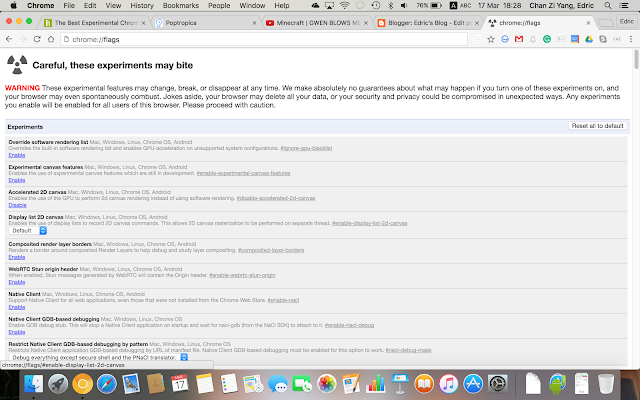
Material Design On Chrome - How-To's

Image
UPDATE: Material Design expected to be out soon on Chrome. At the meantime, check out Chrome Canary! Link:  https://goo.gl/4MkvFq Here's how to enable it. 1. Go to chrome://flags . 2. Find it by either pressing  ⌘F or Ctrl + F. 3. Search for Material. 4. Enable all the flags. 5. Click the "Relaunch" button. 6. Done! (UPDATE) Please insert chrome://flags into your own browser instead of clicking on it. (UPDATE) Only works on Google Chrome

Add a Google Form to your blog - How-To's

Image
Step 1: Create a form. (This is the "Technical Issues" form) ( Link ) Step 2: Fill in the form with necessary questions. Step 3: Click on Send (represented as a "Send" button) and a window will pop up. Step 4: Click on the "Embed" button (represented here with two arrows facing opposite each other).    Step 5: Depending on your preferences, you might want to change the width and the height of the embedded form. Click on the appropriate boxes to change it. (px stands for pixels, and the size I usually use is Width=600, Height=500) Step 6: You can either click to copy or use the keyboard shortcut ( ⌘ + C or Ctrl + C). Step 7: Paste the code by clicking on "HTML". Step 8: Done! (Alternatively, you could use the link option) Notes: 1. The steps above can be done on all platforms. 2. Grammarly has been annoying me for the past 15 minutes since I started typing. ( Link , Logged-in only )